Context
If you are getting an ultrasound issue on your system, checking the state of the beamformer is one of the steps you can do during your investigations.
Retrieving the log file and sending it to the KOELIS Service team will help them for their investigations.
How to check the state of the beamformer?
On the Admin account of your TRINITY (password: Koelis2006):
- Go to "Devices & Printers"
- Look at the device "SmartUS":
-
-
-
- If there is a green dot on the icon, the beamformer is working well
- If there is a red dot on the icon, the beamformer is defective
- A yellow triangle next to the icon doesn't mean that the beamformer is defective
-
-
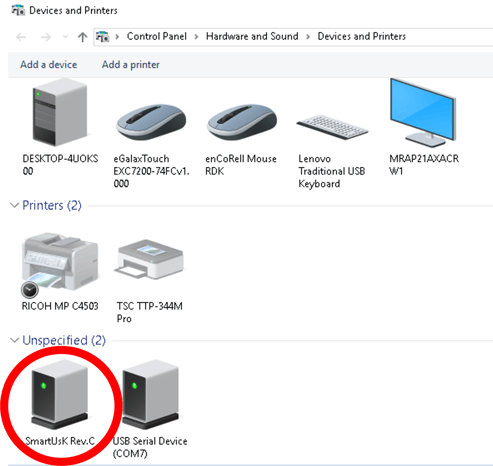 Here the dot is green, the beamformer is working well
How to retrieve the log file of the beamformer?
On the Admin account of your TRINITY (password: Koelis2006):
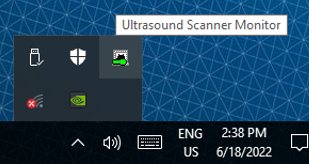
- On the bottom right of the screen, on the Windows toolbar click on the arrow
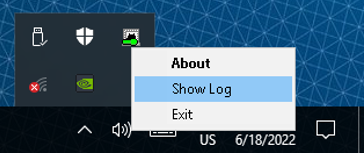
- Right click on "Ultrasound Scanner Monitor"
- Click on "Show Log"
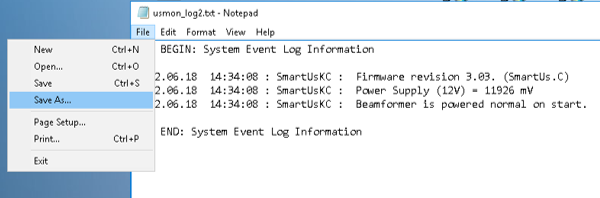
- It will open a text file. Save it, retrieve the file and send it to the KOELIS Service team